Knowledge Base
Create a MySQL Database and User
A MySQL Database allows you to store and manage your data efficiently. And by setting up a new user, you can customise access and update permissions for your database.
These quick guides can help you set up a MySQL database and user easily:
Creating a New Database
- Access Databases in your Account Manager.
- Click CREATE A NEW DATABASE.

- In the pop-up window, enter a name for your new database and select the privileged MySQL users who will have access to it by checking the appropriate boxes.

- Click ADD DATABASE to save your new database.
You will see your newly-added database in the Databases section.
Creating a New SQL User
- Access Databases in your Account Manager.
- Scroll to the SQL Users section, then click CREATE A NEW MYSQL USER.

- In the pop-up screen, enter a new username and password, then tick the boxes to select the database your new user can access.
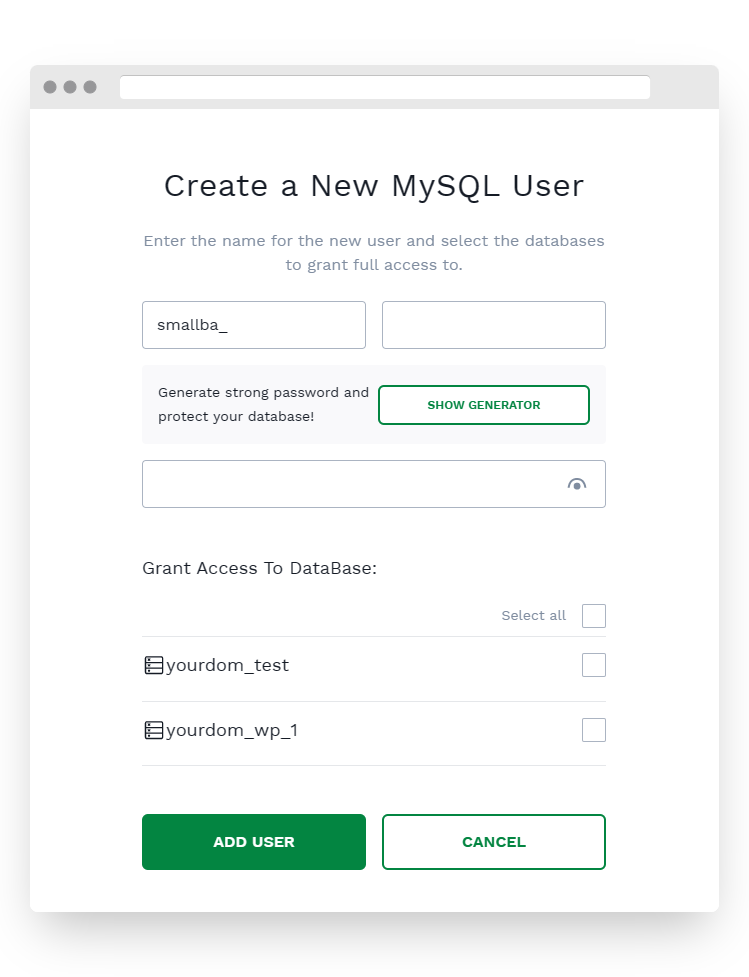
- Click ADD USER to save your new user.
You will see your newly-added user in your list of SQL Users. If you want to change the settings for each user, click the following icons.

- Manage – Allows you to update database grants or permissions for a user.
- Change Password – Where you can update the password for a user.
- Delete – Click this to remove a user.
* Your feedback is too short